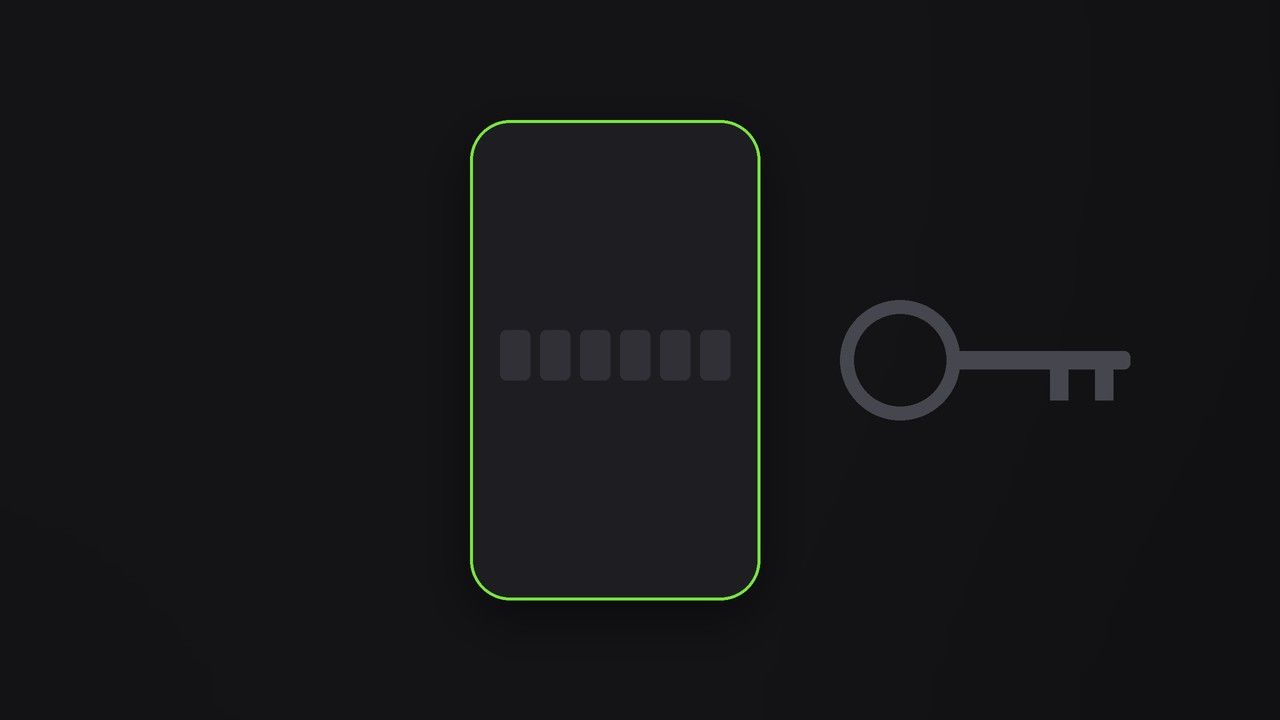
To enable 2FA on Discord, open User Settings, then My Account, and under Password and Authentication press Enable Authenticator App. Scan the QR code with an authenticator app such as Google Authenticator or Authy, type the 6-digit code it shows, press Activate, and save your backup codes. Discord calls this Multi-Factor Authentication (MFA), and it supports three kinds: security keys and passkeys, an authenticator app, and SMS as a backup.
This is for anyone securing a Discord account, and for server owners who need their staff locked down. The one thing that decides whether 2FA saves you or locks you out: the backup codes. Discord says its support team cannot remove MFA from an account, so if you lose your phone and your codes, you lose the account.
How to enable 2FA on Discord
Enable 2FA on desktop or in the browser in five steps. These follow Discord’s Using an Authenticator App on Discord article.
- Click the cogwheel next to your username to open User Settings. You land on My Account.
- Find the Multi-Factor Authentication options under Password and Authentication.
- Press Enable Authenticator App. Install Google Authenticator or Authy on your phone if you do not have one.
- Open the authenticator app and scan the QR code Discord shows. The app now generates a 6-digit code.
- Enter that code in Login with your code and press Activate.
Discord then offers to link your phone number as a backup, and shows your backup codes. Download them before you close the window.
Important: Don’t forget to save your backup codes after enabling MFA. The Discord Support team is not able to remove MFA from an account.
Enable 2FA on the Discord mobile app
On mobile the steps are almost the same:
- Tap your avatar in the bottom-right corner, then the cogwheel in the top-right.
- Tap Account, then Enable Authenticator App.
- Follow the prompts to copy the secret key into your authenticator app.
- Enter a code the app generates to confirm it works.
- Save the backup codes Discord shows you.
Add a passkey or security key
A passkey or security key is the strongest option, and the one Discord recommends. Discord’s Setting up Multi-Factor Authentication article, updated April 30, 2026, describes passkeys as encrypted keys you create with your fingerprint, face, or screen lock, which can sync through your password manager. It calls them phishing resistant: a fake login page cannot reuse them.
To add one: User Settings, then Account, then Security Keys, then Add. You can keep the authenticator app as well. Discord lets you combine methods.
That phishing resistance matters on Discord, where fake “verify” and “free Nitro” pages are common. More on those in Discord scam links and phishing.
Save your backup codes
Backup codes are one-time codes that get you in if you lose your phone or your security key. Each works once. Discord recommends a password manager, or printing them and hiding them.
Lost them? If you can still log in, open User Settings, then My Account, and choose View Backup Codes to see which are used and download them again. If you used one to get back in, set up 2FA again and generate fresh codes.
Discord’s authenticator article is blunt about what happens without them: if you lose your codes, Discord can’t help you get back into your account.
Should you use SMS 2FA?
Only as a backup. Discord’s own MFA article says “SMS MFA is better than no MFA, but not by a lot,” because attackers can take over phone numbers with a SIM swap. Discord supports SMS but does not recommend it, and it can only be turned on after you set up an authenticator app.
Require 2FA for your server’s moderators
Server owners can require every member with moderation powers to have 2FA on. Discord calls it the 2FA Requirement for Moderation, and its Enabling Server Discovery article lists it as a requirement for Server Discovery.
Turn it on. A leaked staff password is one of the ways servers get nuked, and with the requirement on, that password alone is not enough to use moderation powers. For the rest of a staff security setup, see Discord community management.
Protect your server tools with 2FA too
Your Discord account is not the only login that can wreck your server. Every bot dashboard with power over it needs 2FA too.
VaultCord supports both kinds Discord recommends:
- Authenticator app: scan a QR code, or enter the secret manually, in your VaultCord account settings.
- Security keys and passkeys: add one or more devices, and remove any you lose.
With 2FA on, VaultCord’s powerful slash commands, such as /pull, /backup, /restore, and /denuke, ask for your 2FA code in a code option unless you opt out, so a stolen Discord account in your server cannot run them on its own. On a team, the owner can Require two-factor authentication for every team member. If you ever lose your VaultCord 2FA, account recovery can turn it off once you prove ownership with a purchase order ID, a recovery key, a saved developer webhook URL, or a Discord code from your custom bot.
How it works
- 1Turn on Discord 2FA
Authenticator app or passkey, and save the backup codes somewhere safe.
- 2Require it for staff
Turn on the 2FA Requirement for Moderation so stolen passwords cannot moderate.
- 3Lock your bot dashboards
Turn on 2FA in VaultCord so pulls, restores, and denukes need your code.
Where people get stuck
- No backup codes saved. Save them the moment you enable 2FA. Discord cannot remove MFA for you.
- New phone, old authenticator. Not every authenticator app syncs. Discord warns that losing your phone without backup codes can lock you out. Move the authenticator before you wipe the old phone.
- SMS option missing. SMS only appears after an authenticator app is set up.
- Backup code not accepted. Discord says the option disappears when all codes are used, or when you try one for something other than logging in, such as registering a passkey.
- Staff cannot moderate. The server requires 2FA for moderation, and that staff member has not turned it on yet.
Frequently asked questions
How do I turn on 2FA on Discord?
User Settings, then My Account, then Enable Authenticator App. Scan the QR code, enter the 6-digit code, press Activate, and save your backup codes.
What is the best 2FA method for Discord?
Discord recommends a security key or passkey because it is phishing resistant. An authenticator app is the common choice. SMS should only be a backup.
Can Discord support turn off my 2FA?
No. Discord says its support team cannot remove MFA from an account. Your backup codes are the recovery path.
How do I see my Discord backup codes?
User Settings, then My Account, then View Backup Codes. You can see which are used and download them.
Does Discord require 2FA?
Not for every account. A server owner can require 2FA for members with moderation powers, and Discord requires that setting for Server Discovery.
Sources and verification
Every step was checked against the pages below on the date shown.
Keep reading
More guides for running a Discord server you can restore.